Supabase Data Step — Give Each NFC Tag Persistent Memory
Use the Supabase step to read and write per-tag data on your own Supabase project. Store form responses on a tag and replay them on the next tap.
What does the Supabase step do?
Most steps are stateless — every tap behaves the same. The Supabase step changes that by storing data per tag in a database you control:
- Write — save the form responses collected on this tap into the tag’s record (deep-merged with whatever was already stored).
- Read — load the tag’s stored values back into the flow, where later steps can show them as template variables like
{{sku}}or{{qty}}.
This makes patterns like “scan once to register, tap again to see your details” possible. The step runs silently — the Tapper never sees a Supabase screen.
The connection (the “login”)
The step talks to your Supabase project, not a Kitetags database. You authenticate it once by creating a Supabase Connection — a saved project URL plus service-role key — under Apps → Supabase. Until at least one connection exists, the step shows a prompt to add one.
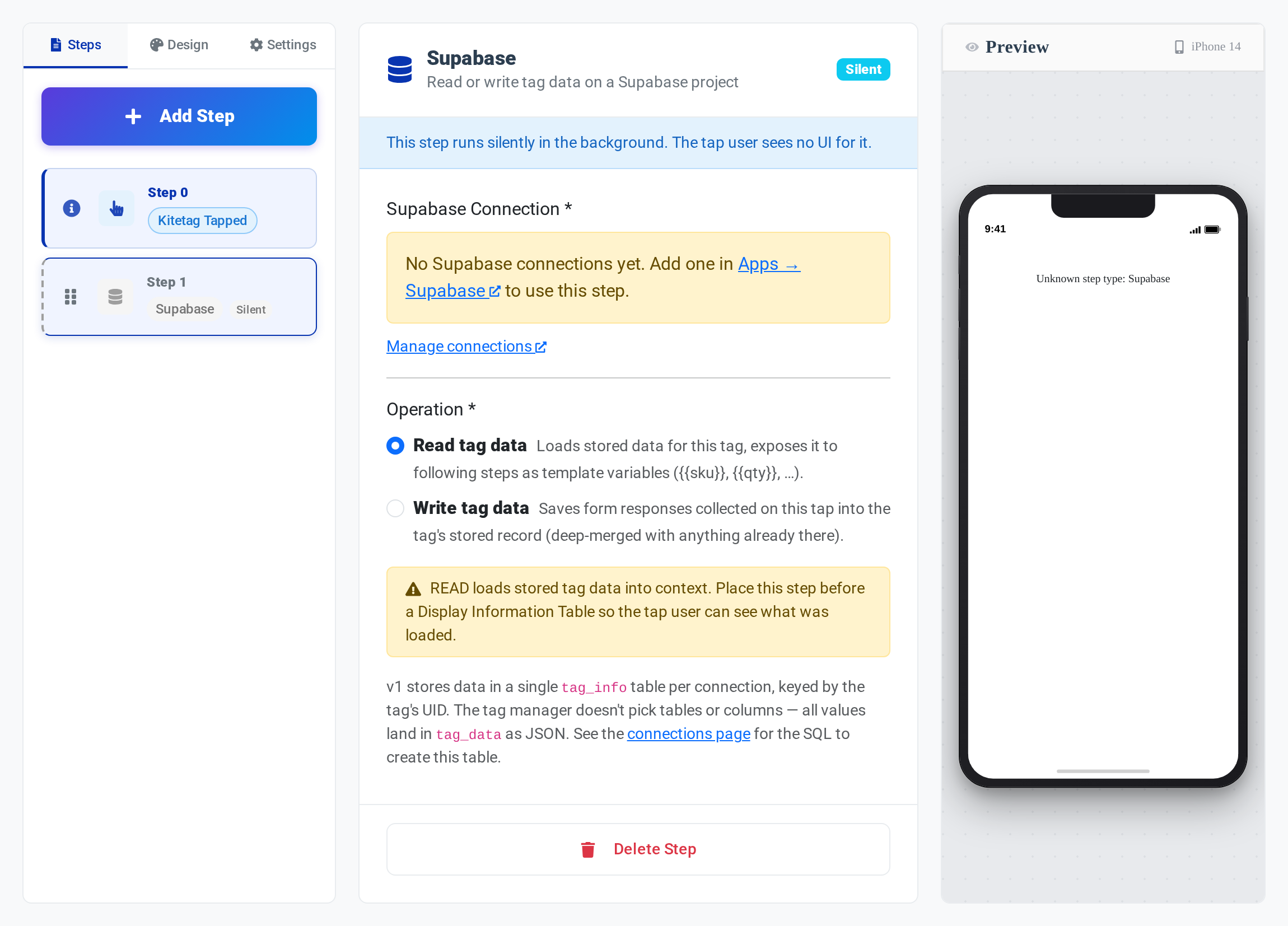
In v1, data is stored in a single tag_info table per connection, keyed by the tag’s UID. You do not pick tables or columns — all values land in a tag_data JSON column. The connections page provides the SQL to create that table.
How do you set it up?
- In Supabase, create a project and run the table SQL from Apps → Supabase (creates the
tag_infotable). - In Kitetags, go to Apps → Supabase and add a connection (project URL + service-role key).
- Open the Interaction Builder and click Add Step → Supabase.
- Pick the connection, then choose an operation:
- Write tag data — place this step right after a Form Input step so there is data to save.
- Read tag data — place this step before a Display Information Table step so the Tapper can see what was loaded.
- Publish the interaction and assign it to a Kitetag Group.
When should you use it?
- Register-once tags — first tap collects details with a Form Input + Write; later taps Read and display them.
- Visit counters / last-seen — accumulate simple state per tag.
- Asset records — store the latest inspection note on the tag itself.
Next steps
- Combine with a Form Input and Display Information Table for a full register-then-recall flow.
- Prefer pushing data to your own server instead? See Webhooks.
- Review every step type in the Interaction Builder guide.
Last updated 14 Sep 2026, 15:30 -0700 .