WiFi Share — Share WiFi Over an NFC Tap with a QR Code
Use the WiFi Share step to let anyone who taps a Kitetag join your WiFi. It generates a scannable QR code from your SSID and password — no app, no typing.
What does WiFi Share do?
WiFi Share turns a tap into guest WiFi access. When someone taps a Kitetag at your café, hotel, or office, they see a branded screen with a QR code. They scan it (or download it and open it in their photo viewer) and the phone recognizes the network and offers to connect.
NFC alone cannot make a phone join a WiFi network — iOS ignores WiFi NDEF records and Android needs a companion app. A QR code in the standard WIFI: URI format is the only reliable cross-platform path, and WiFi Share generates it for you.
When should you use WiFi Share?
- Cafés, restaurants, and bars — guest WiFi without a chalkboard password
- Hotels and short-term rentals — in-room tap card for the network
- Coworking and offices — visitor and meeting-room WiFi
- Events and pop-ups — temporary network access for attendees
How do you set up WiFi Share?
WiFi Share is a step in the Interaction Builder, so you add it inside an interaction rather than as a standalone app.
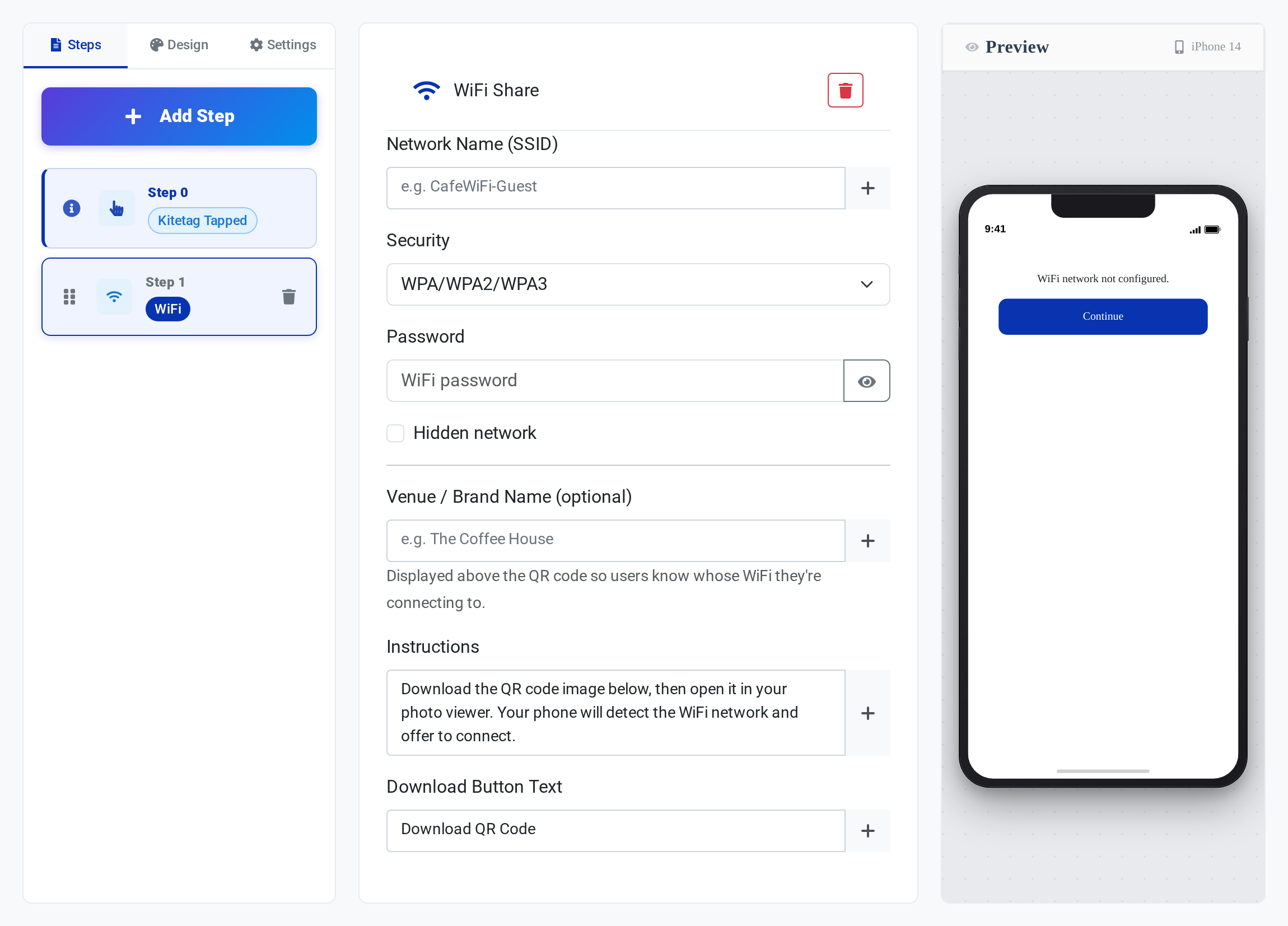
- Open the Interaction Builder and click Add Step.
- Under Display Content, choose WiFi Share.
- Configure the fields:
- Network Name (SSID) — exactly as your router broadcasts it (case-sensitive).
- Security —
WPA/WPA2/WPA3,WEP, orNone (open network). - Password — hidden behind a show/hide toggle so it is not exposed over your shoulder.
- Hidden network — check this only if the SSID does not broadcast.
- Venue / Brand Name (optional) — shown above the QR code so Tappers know whose WiFi it is.
- Instructions — short guidance, e.g. “Download the QR code, open it in your photo viewer, and your phone will offer to connect.”
- Download Button Text — the label on the button that saves the QR image.
- Continue Button Text — the label on the button that advances to the next step (defaults to “Continue”). Handy for wording like “I’m connected” or “Next”.
- Watch the iPhone preview update on the right.
- Save or Publish the interaction and assign it to a Kitetag Group.
What the Tapper sees
The tap screen shows your venue name, the QR code, your instruction text, and a download button. On iOS 11+ and Android 10+ the phone camera or photo viewer detects the embedded network and offers to join. After downloading, the Tapper taps the continue button (whose label you set with Continue Button Text) to move through any remaining steps in the interaction.
Next steps
- See every step type in the Interaction Builder guide.
- Pair WiFi Share with a Message welcome step for a branded café flow.
- For a single-action tap instead of a multi-step flow, browse the Apps overview.
Last updated 14 Sep 2026, 15:30 -0700 .